Showing posts with label SQL Azure Labs. Show all posts

Wednesday, June 27, 2012

My “Big Data in the Cloud” Cover Article for Visual Studio Magazine’s July 2012 Issue

• Updated 6/30/2012 with status of the live data source for Codename “Social Analytics.”

imageMy Big Data in the Cloud article for Visual Studio Magazine’s July 2012 issue asserts “Microsoft has cooked up a feast of value-added big data cloud apps featuring Apache Hadoop, MapReduce, Hive and Pig, as well as free apps and utilities for numerical analysis, publishing data sets, data encryption, and uploading files to SQL Azure and blobs.” Here’s the introduction:

Competition is heating up for Platform as a Service (PaaS) providers such as Microsoft Windows Azure, Google App Engine, VMware Cloud Foundry and Salesforce.com Heroku, but cutting compute and storage charges no longer increases PaaS market share. So traditional Infrastructure as a Service (IaaS) vendors, led by Amazon Web Services (AWS) LLC, are encroaching on PaaS providers by adding new features to abstract cloud computing functions that formerly required provisioning by users. For example, AWS introduced Elastic MapReduce (EMR) with Apache Hive for big data analytics in April 2009. In October 2009, Amazon added a Relational Database Services (RDS) beta to its bag of cloud tricks to compete with SQL Azure.

imageNote: My The battle for cloud services: Microsoft vs. Amazon article of 6/18/2012 for TechTarget’s SearchCloudApplications.com site compares the feature of the two cloud giants’ approaches to implementing Hadoop, MapReduce and Hive in Windows Azure and Amazon Web Services.

image_thumb11_thumb[1]Microsoft finally countered with a multipronged Apache Hadoop on Windows Azure preview in December 2011, aided by Hadoop consultants from Hortonworks Inc., a Yahoo! Inc. spin-off. Microsoft also intends to enter the highly competitive IaaS market; a breakout session at the Microsoft Worldwide Partner Conference 2012 will unveil Windows Azure IaaS for hybrid and public clouds. In late 2011, Microsoft began leveraging its technical depth in business intelligence (BI) and data management with free previews of a wide variety of value-added Software as a Service (SaaS) add-ins for Windows Azure and SQL Azure (see Table 1).

Codename Description Link to Tutorial
“Social Analytics” Summarizes big data from millions of tweets and other unstructured social data provided by the “Social Analytics” Team http://bit.ly/Kluwd1
“Data Transfer” Moves comma-separated-value (SSV) and other structured data to SQL Azure or Windows Azure blobs http://bit.ly/IC1DJp
“Data Hub” Enables data mavens to establish private data markets that run in Windows Azure http://bit.ly/IjRCE0
“Cloud Numerics” Supports developers who use Visual Studio to analyze distributed arrays of numeric data with Windows High-Performance Clusters (HPCs) in the cloud or on premises http://bit.ly/IccY3o
“Data Explorer” Provides a UI to quickly mash up BigData from various sources and publish the mash-up to a Workspace in Windows Azure http://bit.ly/IMaOIN
“Trust Services” Enables programmatically encrypting Windows Azure and SQL Azure data http://bit.ly/IxJfqL
“SQL Azure Security Services” Enables assessing the security state of one or all of the databases on a SQL Azure server. http://bit.ly/IxJ0M8
“Austin” Helps developers process StreamInsight data in Windows Azure  

Table 1. The SQL Azure Labs team and the StreamInsight unit have published no-charge previews of several experimental SaaS apps and utilities for Windows Azure and SQL Azure. The Labs team characterizes these offerings as "concept ideas and prototypes," and states that they are "experiments with no current plans to be included in a product and are not production quality."

image_thumb3_thumb

In this article, I'll describe how the Microsoft Hadoop on Windows Azure project eases big data analytics for data-oriented developers and provide brief summaries of free SaaS previews that aid developers in deploying their apps to public and private clouds. (Only a couple require a fee for the Windows Azure resources they consume.) I'll also include instructions for obtaining invitations for the previews, as well as links to tutorials and source code for some of them. These SaaS previews demonstrate to independent software vendors (ISVs) the ease of migrating conventional, earth-bound apps to SaaS in the Windows Azure cloud.

My Recent Articles about SQL Azure Labs and Other Added-Value Windows Azure SaaS Previews: A Bibliography post of 6/1/2012 contains brief descriptions of and links to all my recent articles on these topics.

image_thumb15_thumb[1]_thumbThis article went to press before the Windows Azure Team’s Meet Azure event on 6/7/2012, where the team unveiled the “Spring Wave” of new features, upgrades and updates to Windows Azure, including Windows Azure Virtual Machines, Virtual Networks, Web Sites and other new and exciting services. Also, the team terminated Codename “Data Transfer” project on 6/2/2012 and Codename “Social Analytics” lab as of 6/21/2012. However, as of 6/27/2012, the “Social Analytics” data stream from the Windows Azure Marketplace Data Market was still operational, so the downloadable C# code for the Microsoft Codename “Social Analytics” Windows Form Client still works. As of 6/30/2012, the data from the Windows Azure Marketplace Data Market was no longer available, so I’ll modify the sample code to use the data I generated (see below note). Stay tuned for availability of the bits.

Note: I modified my working version of the project to copy the data from about a million rows in the DataGridView to a DataGrid.csv file, which can be loaded on demand. Copies of this file and the associated source file for the client’s chart are available from my SkyDrive account. I will update the sample code to use the DataGrid.csv file if the Data Market steam becomes unavailable.

Read the article here.

My Visual Studio Magazine Article Retrospective article links to the cover stories I’ve written for the past nine years.


Saturday, May 05, 2012

Microsoft Codename “Data Transfer” and “Data Hub” Previews Don’t Appear Ready for BigData

Or even MediumData, for that matter:

Neither the Codename “Data Transfer” utility nor Codename “Data Hub” application CTPs would load 500,000 rows of a simple Excel worksheet saved as a 17-MB *.csv file to an SQL Azure table.

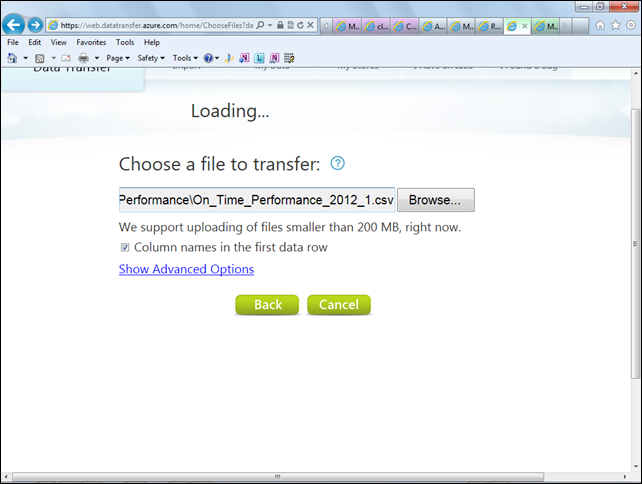
The “Data Transfer” utility’s Choose a File to Transfer page states: “We support uploading of files smaller than 200 MB, right now,” but neither preview publishes a row count limit that I can find. “Data Hub” uses “Data Transfer” to upload data, so the maximum file size would apply to it, too.

Both Windows Azure SaaS offerings handled a 100-row subset with aplomb, so the issue appears to be row count, not data structure.


Update 5/15/2012 7:45 AM PDT to the 4/24/2012 update below: A member of the Microsoft Data Hub/Transfer team advised that the known erroneous row count and random upload failure issues have been fixed. I will retest uploads later this week and report my results here and to the team.

image•• Update 5/5/2012 8:45 AM PDT: Max Uritsky (@max_data), Group Program Manager for Microsoft Azure Marketplace, responded to my How Can I Tell if a *.csv Upload Is Successful? thread in the Windows Azure Marketplace Forum, which complained about *.csv upload failures with large files:

.csv upload in DataMarket is preview only. We will disable it in a mean time in order to reduce confusion. …

I found no indication that *.csv file uploads were “preview only” during my tests. IMO, eliminating *.csv uploads is a bad idea because it will discourage ordinary contributors from participating in the DataMarket with freely download content. In this case, ordinary contributors would need to provide their own SQL Azure Web database at $9.95 per month. Other remaining content-provision options, such as Web services and OData feeds, aren’t practical for such contributors.

I assume that Windows Azure DataMarket is using Codename “Data Hub”/”Data Transfer” to upload these files. If so, fixing the problem with Codename “Data Hub” should solve the problem with uploading *.csv files to DataMarket.

Disabling a feature rather than fixing it isn’t my idea of a good policy.

Note: The Codename “Data Transfer” team implemented “My Great Windows Azure Idea” to Enable Append or Replace Option for SQL Azure Uploads of 11/20/2011 on 2/6/2012.

Links to related posts:


• Update 5/4/2012 10:30 AM PDT: See details about the forcible disconnect from Fiddler2 at the end of this post. Also added five more On_Time_Performance_2011_MM.csv files to my SkyDrive account to complete the series for the year 2011.


image_thumb15_thumbUpdate 5/2/2012 3:00 PM PDT: I was unable to upload additional ~500,000-row monthly On_Time_Performance_YYYY_MM.csv files to my free US Air Carrier Flight Delays, Monthly dataset on the public Windows Azure Marketplace Data market today. Forced disconnects similar to those I reported for Codename “Data Hub” occurred. Here’s a screen capture of the free public offer:

image

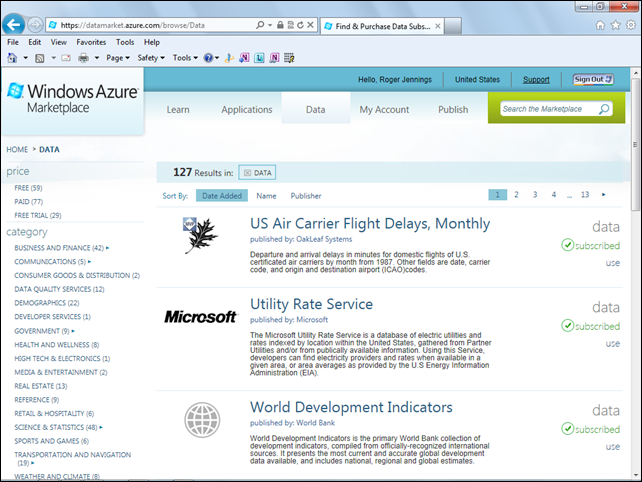
To subscribe to the data set, go the the Windows Azure Marketplace DataMarket landing page, create an account if you don’t have one, log in, and type OakLeaf in the Search the Marketplace text box to display the data and app offers:

image

Click the US Air Carrier Flight Delays, Monthly link to open the Offer page, and click the Sign Up button to open the eponymous page:

image

Mark the I have read and agree to … check box and click the Sign Up button to open the Thank You page:

image

This process adds a link to your Data list:
image


Update 4/24/2012 8:15 AM PDT: A member of the Microsoft Data Hub/Transfer team advised that the erroneous row count and random upload failure problems I reported for Codename “Data Transfer” were known issues and the team was working on them. I was unable to upload the ~500,000-row files with Codename “Data Hub”; see the added “Results with Codename “Data Hub” Uploads” section at the end of the post.


Update 4/23/2012 10:00 AM PDT: Two members of Microsoft Data Hub/Transfer team reported that they could upload the large test file successfully. Added “Computer/Internet Connection Details” section below. Completed tests to determine maximum file size I can upload. The My Data page showed anomalous results but only the 200k row test actually failed on 4/23. See the Subsequent Events section.


Background

The Creating the Azure Blob Source Data section of my Using Data from Windows Azure Blobs with Apache Hadoop on Windows Azure CTP post of 4/6/2012 described the data set I wanted to distribute via a publicly accessible, free Windows Azure DataMarket dataset. The only differences between it and the tab-delimited *.txt files uploaded to blobs that served as the data source for an Apache Hive table were

  • Inclusion of column names in the first row
  • Addition of a formatted date field (Hive tables don’t have a native date or datetime datatype)
  • Field delimiter character (comma instead of tab)

Following is a screen capture of the first 20 data rows of the 500,000-row On_Time_Performance_2012_1.csv table:

imageClick images to display full-size screen captures.

You can download sample On_Time_Performance_YYYY_MM.csv files from the OnTimePerformanceCSV folder of my Windows Live SkyDrive account. On_Time_Performance_2012_0.csv is the 100-row sample file described in the preceding section; On_Time_Performance_2012_1.csv has 486,133 data rows.

Tab-delimited sample On_Time_Performance_YYYY_MM.txt files (without the first row of column names and formatted date) for use in creating blobs to serve as the data source for Hive databases are available from my Flight Data Files for Hadoop on Azure SkyDrive folder.

Provision of the files through a private Azure DataMarket service was intended to supplement the SkyDrive downloads.

Computer/Internet Connection Details:

Intel 64-bit DQ45CB motherboard with Core 2 Quad CPU Q9950 2.83 GHz, 8 GB RAM, 750 GB RAID 1 discs, Windows 7 Premium SP1, IE 9.0.8112.16421.

AT&T commercial DSL copper connection, Cayman router, 2.60 Mbps download, 0.42 Mbps upload after router reboot, 100-Mbps wired connection from Windows 2003 Server R&RA NAT.


Uploading with Microsoft Codename “Data Hub”

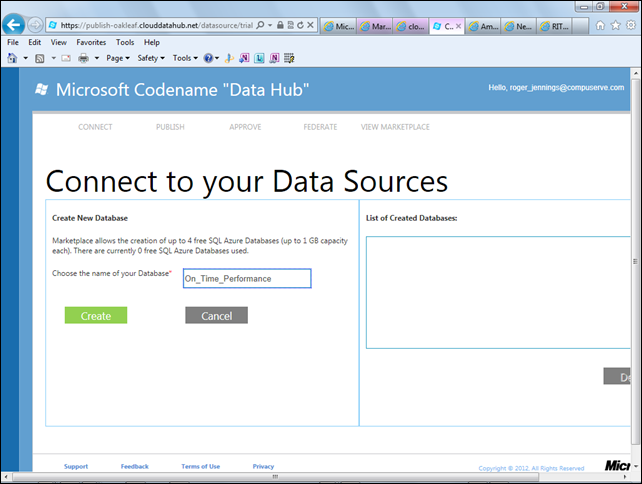
Codename “Data Hub” provides testers with up to four free SQL Azure 1-GB Web databases, so I created a connection to a new On_Time_Performance database:
image

I then specified the ~500,000-row On_Time_Performance2012_1.csv file for January 2012 as the data source and clicked Upload:

image

The site provided no indication of any activity, although my DSL router indicated data was being uploaded. After a few minutes, the server disconnected. Reloading the page showed no change in status.

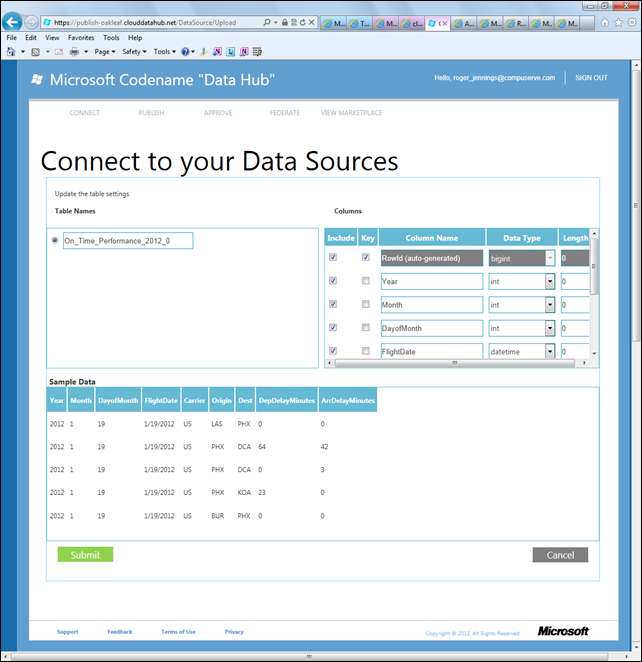
I then tried uploading the 100-row On_Time_Performance_2012_0.csv, which opened the following page after about 10 seconds:
image

I accepted the suggested data types and clicked Submit, which added the data to the table.


Uploading with Microsoft Codename “Data Transfer”

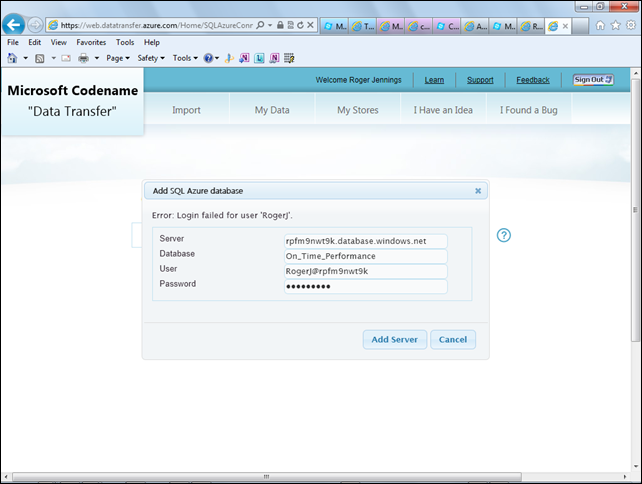
I created a new database in an existing OakLeaf SQL Azure instance because “Data Transfer” doesn’t provide free 1-GB Web databases. I repeated the above process with Codename “Data Transfer” but encountered a bug which prevented use of the # (and presumably other symbols) in the existing database access password:
image

Update 4/23/2012: A member of Microsoft’s Data Transfer team was able to reproduce the # symbol problem.

Selecting On_Time_Performance_2012_1.csv to upload by clicking Analyze caused the app to hang in the Loading … condition:
image

Canceling the process and selecting 100-row On_Time_Performance_2012_0.csv resulted in the expected Update the Table Settings page appearing in about 10 seconds:

image 

Clicking Save resulted in a Submit Succeeded message.


Conclusion

Neither Codename “Data Hub” nor Codename “Data Transfer” appears to be ready for prime time. Hopefully, a fast refresh will solve the problem because users’ Codename “Data Hub” preview invitations are valid only for three weeks.


Subsequent Events

Members of the Microsoft Data Transfer/Data Hub team weren’t able to reproduce my problem on 4/22 and 4/23/2012. They could process the 486,133-row On_Time_Performance_2012_1.csv file without difficulty. To determine at what file size uploading problems occurred for me, I created files of 1,000, 10,000, 100,000, 150,000, and 200,000 data rows from On_Time_Performance_2012_1.csv. I’ve uploaded these files to the public OnTimePerformanceCSV folder of my Windows Live SkyDrive account.

Results with Codename “Data Transfer” Uploads

All files appeared to upload on Monday morning, 4/23/2012, but My Data showed incorrect Last Job Status data for all but the 10,000-row set. I used Codename “Data Transfer” instead of “Data Hub” to obtain Job Status data. Data below was refreshed about 15 minutes after completion of the the 2012_1.csv file; I failed to save the 1,000-row set:

image

The 100k file created 100,000 rows, as expected, 200k added no rows to the table, and a rerun of 2012_1 created the expected 486,133 rows:

image

Microsoft’s South Central US (San Antonio) data center hosts the e3895m7bbt database. It’s possible that problems affecting Windows Compute there on 4/19 and 4/20 (see my Flurry of Outages on 4/19/2012 for my Windows Azure Tables Demo in the South Central US Data Center post) spilled over to SQL Azure on 4/22/2012, but that’s unlikely. However, the unexpected results with the 200k table and anomalous Last Job Status data indicates an underlying problem. I’ll update this post as I obtain more information on the problem from Microsoft.

Results with Codename “Data Hub” Uploads

I was able to upload all test files (100, 1,000, 10,000, 100,000, 150,000 and 200,000 rows) but unable to upload the On_Time_Performance_2012_1.csv file to one of the four free databases with Codename “Data Hub” after three tries. The service forcibly disconnects after data upload completes, so data doesn’t transfer from the blob to the database table.

So I used the data source I created with Codename “Data Transfer” as an external data source to publish the data. None of the data fields were indexed, which displayed the following error (in bold red type) in the “My Offerings” page’s Status/Review section:

All queryable columns must be indexed: Not all queryable columns in table "On_Time_Performance_2012_1" are indexed. The columns that are not indexed are: "ArrDelayMinutes", "Carrier", "DayofMonth", "DepDelayMinutes", "Dest", "FlightDate", "Month", "Origin", "Year".

Codename “Data Transfer” doesn’t offer an option to index specific columns so I added indexes on all fields except RowId, DayofMonth, Month and Year with SQL Server Management Studio and cleared the Queryable checkboxes for these fields on the My Offerings - Data Source page.

Here’s Data Explorer’s Table View of part of the first few rows:

image

Check the Codename “Data Transfer” feedback page for my improvement suggestions:

“Data Hub” doesn’t appear to have its own feedback page.


• Update 5/4/2012: Fiddler2 returns the following message when the Windows Azure Marketplace DataMarket forcibly closes the connection:

[Fiddler] ResendRequest() failed: Unable to write data to the transport connection: An existing connection was forcibly closed by the remote host. < An existing connection was forcibly closed by the remote host

Here’s Fiddler’s Tunnel to HTTPS request:

CONNECT publish.marketplace.windowsazure.com:443 HTTP/1.0
User-Agent: Mozilla/5.0 (compatible; MSIE 9.0; Windows NT 6.1; WOW64; Trident/5.0; BOIE9;ENUS)
Host: publish.marketplace.windowsazure.com:443
Content-Length: 0
Connection: Keep-Alive
Pragma: no-cache

A SSLv3-compatible ClientHello handshake was found. Fiddler extracted the parameters below.

Major Version: 3
Minor Version: 1
Random: 4F A4 0D C2 93 73 E8 BF B8 1B 72 0C F9 18 9F 10 20 DB DC 69 CC 10 EA 23 03 52 EB D7 CC DE 9B A5
SessionID: 39 40 00 00 43 4D 4A 4A C8 09 67 51 4A D9 C1 0C 36 7E 2D CB 12 DB B0 F5 49 03 81 57 86 B2 4D F9
Ciphers:
    [002F]    TLS_RSA_AES_128_SHA
    [0035]    TLS_RSA_AES_256_SHA
    [0005]    SSL_RSA_WITH_RC4_128_SHA
    [000A]    SSL_RSA_WITH_3DES_EDE_SHA
    [C013]    TLS1_CK_ECDHE_RSA_WITH_AES_128_CBC_SHA
    [C014]    TLS1_CK_ECDHE_RSA_WITH_AES_256_CBC_SHA
    [C009]    TLS1_CK_ECDHE_ECDSA_WITH_AES_128_CBC_SHA
    [C00A]    TLS1_CK_ECDHE_ECDSA_WITH_AES_256_CBC_SHA
    [0032]    TLS_DHE_DSS_WITH_AES_128_SHA
    [0038]    TLS_DHE_DSS_WITH_AES_256_SHA
    [0013]    SSL_DHE_DSS_WITH_3DES_EDE_SHA
    [0004]    SSL_RSA_WITH_RC4_128_MD5

Compression:
    [00]    NO_COMPRESSION

Extensions:
    renegotiation_info    00
    server_name    publish.marketplace.windowsazure.com
    status_request    01 00 00 00 00
    elliptic_curves    00 04 00 17 00 18
    ec_point_formats    01 00

and the HTTPS response:

HTTP/1.0 200 Connection Established
FiddlerGateway: Direct
StartTime: 10:11:30.902
Connection: close

Encrypted HTTPS traffic flows through this CONNECT tunnel. HTTPS Decryption is enabled in Fiddler, so decrypted sessions running in this tunnel will be shown in the Web Sessions list.

Secure Protocol: Tls
Cipher: Aes128 128bits
Hash Algorithm: Sha1 160bitsKey Exchange: RsaKeyX 2048bits

== Server Certificate ==========
[Subject]
  CN=publish.marketplace.windowsazure.com

[Issuer]
  CN=Microsoft Secure Server Authority, DC=redmond, DC=corp, DC=microsoft, DC=com

[Serial Number]
  7EDE070F0008000251F2

[Not Before]
  11/15/2011 2:43:11 PM

[Not After]
  11/14/2013 2:43:11 PM

[Thumbprint]
  C7FC0219C14C8D274B6630BC1DEE0C3AFF757602

The ResendRequest()’s HTTP GET request is as follows:

GET https://publish.marketplace.windowsazure.com/favicon.ico HTTP/1.1
Accept: */*
Accept-Encoding: gzip, deflate
User-Agent: Mozilla/5.0 (compatible; MSIE 9.0; Windows NT 6.1; WOW64; Trident/5.0; BOIE9;ENUS)
Host: publish.marketplace.windowsazure.com
Connection: Keep-Alive
Cookie: l=en-US; _vis_opt_s=9%7C; _vis_opt_exp_79_combi=2; _vis_opt_exp_82_combi=2; _vis_opt_exp_90_combi=1%2C1; _vis_opt_exp_89_combi=5; _vis_opt_exp_107_combi=2; _vis_opt_exp_107_goal_1=1; _vis_opt_exp_108_combi=2; _vis_opt_exp_108_goal_1=1; _vis_opt_exp_114_combi=1; FedAuth=

The authentication token is elided for brevity. Here’s the response without the document:

HTTP/1.1 404 Not Found
Content-Type: text/html
Server: Microsoft-IIS/7.5
X-Powered-By: ASP.NET
Date: Fri, 04 May 2012 17:11:31 GMT
Content-Length: 1245


Friday, April 27, 2012

Creating a Private Data Marketplace with Microsoft Codename “Data Hub”

•• Updated 5/11/2012 with change of dataset name from US Air Carrier Flight Delays, Monthly to US Air Carrier Flight Delays to reflect change of SQL Azure dataset to new multi-month/year format. (See my Creating An Incremental SQL Azure Data Source for OakLeaf’s U.S. Air Carrier Flight Delays Dataset post of 5/8/2012 for more information about the new dataset.)
• Updated 4/30/2012 with link to OakLeaf’s new US Air Carrier Flight Delays, Monthly (free) data set on the public Windows Azure Marketplace DataMarket.
Contents:

Introduction

SQL Server Labs describes their recent Codename “Data Hub” Consumer Technical Preview (CTP) as “An Online Service for Data Discovery, Distribution and Curation.” At its heart, “Data Hub” is a private version of the public Windows Azure Marketplace DataMarket that runs as a Windows Azure service. The publishing process is almost identical to the public version, except for usage charges and payment transfers. “Data Hub” enables data users and developers, as well as DBAs, to:

  • Make data in SQL Azure discoverable and accessible in OData (AtomPub) format by an organization’s employees
  • Enable data analysts and business managers to view and manipulate data from the Marketplace with Service Explorer, Excel, and Excel PowerPivot
  • Publish datasets for further curation and collaboration with other users in the organization
  • Federate data from the Windows Azure Marketplace DataMarket for the organization’s employees (in addition to the organization’s uploaded data)

The initial CTP supports the preceding features but is limited to SQL Azure as a data source and OData (AtomPub) as the distribution format. Microsoft is considering other data source and distribution formats.


•• Note: OakLeaf’s US Air Carrier Flight Delays, Monthly data sets are publicly accessible at https://oakleaf.clouddatahub.net/ by clicking the Government or Transportation category link. To issue a query with Data Explorer, do this:

  • Click the Sign In button at the top right of the page
  • Log in with your Windows Live ID
  • Click the US Air Carrier Flight Delays link on the landing page
  • Click the Add to Collection button
  • Click the US Air Carrier Flight Delays link in the My Collection page
  • Click the Explore Data button to open the Data Explorer
  • Click the Run Query button to display the first 23 rows of data:

image

For a more detailed description, see the Exploring the User’s Experience at the end of this post.

Alternatively, you can register with the public Windows Azure Marketplace Datamarket and then subscribe to the same datasets from OakLeaf’s new US Air Carrier Flight Delays data set. After you subscribe to the free dataset, you can also use it as a data source for Apache Hadoop on Windows Azure Hive tables.


Obtaining CTP Invitations

“Data Hub” and the “Data Transfer” CTP are invitation-only CTPs. You can request an invitation by clicking the Start Here link for “Data Hub” to open the Welcome page:

imageClick images to display full size screen capture.

Complete the questionnaire and wait for the e-mail that advises you’ve been approved as a user. At present, users are limited to use of the CTP for three weeks.

“Data Hub” integrates “Data Transfer” for uploading comma-separated-value (*.csv) data files to existing or new SQL Azure database tables. As noted below, I found using “Data Transfer” independently of “Data Hub” worked for some large files that “Data Hub” wouldn’t process. Therefore, I recommend you apply for the “Data Transfer CTP” by clicking the Start Here button on the landing page:

image

My Test-Drive SQL Azure Labs’ New Codename “Data Transfer” Web UI for Copying *.csv Files to SQL Azure Tables or Azure Blobs of 11/30/2011 was an early tutorial. I’ll post an updated tutorial for using Codename “Data Transfer” with On_Time_Performance_YYYY_MM.csv files shortly.


Creating Your “Data Hub” Marketplace

After you receive your “Data Hub” invitation, follow the instructions in the e-mail and complete the Create Your Marketplace page. The domain prefix, oakleaf for this example, must be unique within the clouddatahub.net domain. Specify the Start and End IP Addresses for your expected users. (0.0.0.0 and 255.255.255.255 admit all users making your Marketplace public):

image

Click Create Marketplace to take ownership of the subdomain:

image

After the creating process completes, your homepage (at https://oakleaf.clouddatahub.net for this example) appears as shown here:

image

Your Account Key is equivalent to a password for “Data Hub” administration by users with Live IDs other than the administrator’s.


Provisioning a SQL Azure Database to Store *.csv Data

Click the Publish Data menu link to open the Welcome to the Publishing Portal page, which has Connect, Publish, Approve, Federate and View Marketplace menu links.

Click the Connect link to open the Connect to your Data Sources page, which offers five prebuilt sample data sources, AdventureWorks … US Data Gov:

image

I previously provisioned the On_Time_Performance data source from one of the four Free Trial SQL Azure Databases you receive with your invitation and On_Time_Performance2 data source from an existing database created with the “Data Transfer” CTP.

To use one of the four free SQL Azure databases, click the Free Trial SQL Azure Databases link in the left pane of the preceding page to open the Create New Database page. Type a unique name for your database (On_Time_Performance_Test for this example):

image

And click Create to add the database to the Data Sources list and display the Upload a File page.


Understanding the FAA’s On_Time_Performance.csv Files

The Creating the Azure Blob Source Data section of my Using Data from Windows Azure Blobs with Apache Hadoop on Windows Azure CTP post of 4/6/2012 described the data set I wanted to distribute via a publicly accessible, free Windows Azure DataMarket dataset. The only differences between it and the tab-delimited *.txt files uploaded to blobs that served as the data source for an Apache Hive table were:

  • Inclusion of column names in the first row
  • Addition of a formatted date field (Hive tables don’t have a native date or datetime datatype, so Year, Month and DayOfMonth fields were required.)
  • Field delimiter character (comma instead of tab)

Following is a screen capture of the first 20 data rows of the ~500,000-row On_Time_Performance_2012_1.csv table:

image

You can download sample On_Time_Performance_YYYY_MM.csv files from the OnTimePerformanceCSV folder of my Windows Live SkyDrive account. The files are narrowed versions of the On_Time_On_Time_Performance_YYYY_MM.csv files from the Bureau of Transportation’s Research and Innovative Technology Administration site. For more information about these files, see The FAA On_Time_Performance Database’s Schema and Size section of my Analyzing Air Carrier Arrival Delays with Microsoft Codename “Cloud Numerics” article of 3/26/2012. Each original *.csv file has 83 columns, about 500,000 rows and an average size of about 225 MB.

On_Time_Performance_2012_1.csv has 486,133 data rows, nine columns and weighs in at 16.5 MB. Other On_Time_Performance_YYYY_MM.csv files with similar row count and size are being added daily. There also are truncated versions of the files with 100, 1,000, 10,000, 100,000, 150,000 and 200,000 rows that I used for determining the large-file *.csv upload problem with “Data Hub” in the On_Time_Performance_Test subfolder.

Tab-delimited sample On_Time_Performance_YYYY_MM.txt files (without the first row of column names and formatted date) for use in creating blobs to serve as the data source for Hive databases are available from my Flight Data Files for Hadoop on Azure SkyDrive folder.

Provision of the files through a private Azure DataMarket service was intended to supplement the SkyDrive downloads. I also plan to provide the full files in a free submission to the Windows Azure Marketplace Datamarket site in early May.


Uploading *.csv Files to Your Data Source

Download one of the smaller test files from my SkyDrive On_Time_Performance_Test subfolder to your local machine. Choose the 10,000-row file if you have a DSL connection with slow upload speed.

Click the Upload a File page’s Browse button and navigate to the *.csv file you downloaded:

image

Click the Upload button to start the upload to an Azure blog process. You receive no feedback for the progress of the upload until the Update the Table Settings page opens:

image

All data rows are useful, so accept the default Include settings and click Submit to transfer the data from an Azure blob to an SQL Azure table named for the *.csv file, which replaces the above page with a Loading File to Database message. It often takes longer to load the file to the database than to upload it to a blob.

When the Success message appears, click the Connect menu link to verify that the new database appears in the Data Sources list:

image


Publishing the New Data Source

Click the Publish menu link to open the My Offerings page and click the Add Offering button to open the 1. Data Source page.

Select the table(s) you want to include in the data source, type a Friendly Name for the column, click the Columns button for the table to display the column list and clear the columns that you don’t want to be queryable:

image

Indexes are required on all queryable columns. Month and Year don’t need to be queryable because they are the same for all rows in the table.

Click the 2. Contacts button to save the Data Source information and open the Contacts page. Type your Name, Email alias and Phone Number:

image

Click the 3. Details button to open the Details page. Complete the required data, select from one to four categories, open the Documentation list and add links to appropriate documentation URLs, and add a logo image:

image

Click the 4. Status/Review menu link to open the Status/Review page. Click the Request Approval button to send a request the Data Hub team to approve the entry.

image

Note: I will post a tutorial on federating content from the public Windows Azure Marketplace DataMarket after Microsoft approves my pending submission, which is identical to this private Marketplace entry.


Previewing and Approving the Marketplace Submission

Click the Approve menu link to open the My Approvals page. Click the Approve/Decline button to open the message pane, mark the Approve option, type an optional message to the requester, and click the Display Actions button to open Preview Offering choices:

image

Click Preview Offering in Marketplace to verify that the offering details appear as expected:

image

Click the Explore This Dataset link to open the dataset in the Service Explorer and click the Run Query button to display the first 22 of 100 rows with this default URL query https://api-oakleaf.clouddatahub.net/Data.ashx/default/US_Air_Carrier_Flight_Delays_Monthly/preview/On_Time_Performance_2012_1?$top=100:

image

Type a Carrier code, such as WN in the Carrier text box and OAK in the Dest[ination] text box to provide data for Southwest Airlines flights to Oakland with this URL query: https://api-oakleaf.clouddatahub.net/Data.ashx/default/US_Air_Carrier_Flight_Delays_Monthly/preview/On_Time_Performance_2012_1?$filter=Carrier%20eq%20%27WN%27%20and%20Dest%20eq%20%27OAK%27&$top=100:

image

You also can visualize and export data, as well as click the Develop button to open a text box containing the current URL query. Click the XML button to display formatted OData (AtomPub) content:

image

Return to the My Approvals page and click the Send button to notify the originator of the approval and clear the My Approvals counts.


Publishing the Offering

Click the Publish menu link to display the offering with the Draft Approved as the status and the Publish option enabled:

image

Click the Publish button to publish your offering for others to use:

image


Exploring the User’s Experience

Click the Marketplace menu link to return to the landing page, type a search term (OakLeaf for this example) to find your offering:

image

Click the offering name link to open it as an ordinary user and display the Add to Collection button:

image

Click Add to Collection to add the offering to the My Collection list:

image

When you sign out and navigate to the default URL, https://oakleaf.clouddatahub.net/, the landing page appears as shown here:

image

The Science & Statistics item is the default Data.gov offering.  Government or Transportation and Navigation link opens the user view of the offering landing page with a Sign In to Add to Your Collection button:

image

The service URL is: https://api-oakleaf.clouddatahub.net/default/US_Air_Carrier_Flight_Delays_Monthly/. Navigating to this URL and clicking the Show All Data button displays the default collections (for an earlier data source):

image