Contents:
 The new HTML-based Windows Azure Management Portal enables users of all popular operating systems, tablets and smartphones to create, modify and delete instances of cloud services, Web sites, virtual machines, SQL [Azure] Databases, storage accounts, and virtual networks in all Microsoft data centers that support Windows Azure. Future OakLeaf Systems blog posts will cover the remaining five topics.
 Web sites and virtual machines are new Windows Azure features introduced at Microsoft’s MEET Windows Azure celebration of the Spring 2012 wave of Windows Azure upgrades and updates to be held in San Francisco’s Madrone Studios on June 7, 2012.
This post was published at 9:00 AM on 6/7/2012, when Microsoft released the embargo on disclosing details of new Windows Azure features by MVPs and members of the Windows Insiders who had early access.
Note: Screen captures were taken with the current Windows Azure Management Portal Preview version on 5/31/2012. The appearance of Portal Preview screens might be different on 6/7/2012 and later.
 Update 6/8/2012 9:45 AM PDT: Corey Sanders (@CoreySandersWA, pictured at right), Principal Program Manager, Windows Azure, shows you “how to create and manage Windows Virtual Machines in Windows Azure” in Windows Azure Virtual Machines – Part I (Windows) and Henry Jerez, Sr. Program Manager, Windows Azure, explains “how to create and manage Linux Virtual Machines on Windows Azure” in Windows Azure Virtual Machines – Part II (Linux) 20+ minute ChalkTalks.
Update 6/8/2012 8:30 AM PDT: If you have a Windows Azure subscription or you sign up for a free 3-Month Windows Azure Preview, you can request adding the new preview features by following the instructions in my Adding Windows Azure Preview Features to Your Subscription post of 6/8/2012.
Update 6/7/2012 10:30 AM PDT: According to Scott Guthrie (@scottgu) in his Meet the New Windows Azure post today: “We will be opening up the new features I discussed above for public usage a few hours after the keynote concludes.”
Update 6/7/2012 10:00 AM PDT: New pricing information for Virtual Machines is here and for Virtual Networks is here.
The following steps install a Windows 2012 Server Release Candidate virtual machine under Windows Azure running in Microsoft’s West US data center:
1. After you receive e-mail confirmation of your Windows Azure subscription’s access to the Virtual Machine feature, navigate to the Windows Azure Management Preview Portal, sign in with your Windows Live ID (a.k.a., Microsoft Account) to open the landing page, and click the Virtual Machines button in the navigation pane:

Note: The following Web Sites and Cloud Services are publicly accessible on the Cloudapp-Preview:
2. Click the ? button at the bottom right of the page to open a Help panel:

3. Close the help panel and click the Create a Virtual Machine button to open the New panel, type a unique domain name, accept the default Windows Server 2012 Release Candidate image, type and confirm the Administrator password for the machine, select the size you want and choose the closest location:
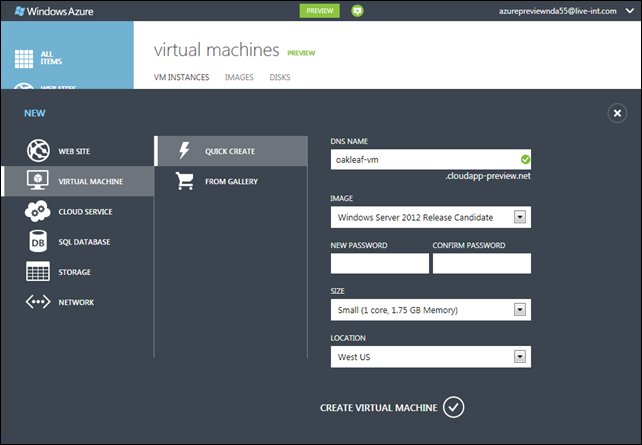
Note: You can choose from the following images with the Quick Create feature selected:

The following sizes are available for all images:

3A. To select a Linux image, an existing image, or a new image file, click the From Gallery button to open the Create Virtual Machine’s VM OS Selection form, which displays by default all available images with a brief description of each:

3B. Select an image and click the right arrow to move to the VM Configuration page 2. Complete the text boxes, select a size, and upload a *.cer file for SSH authentication:

3C. Click the right arrow to move to the VM Mode page, type the Windows Azure DNS name for your VM, accept the default Automatically Generated Storage Account, and select the region, affinity group or, if you’ve created one, virtual network:

3D. Click the Right Arrow to display the VM options page and, if you want, choose Create Availability Set from the list.

Note: A future post will describe how to create and manage geographically disperse availability sets, manage your images, and create an image file.
3E. Click the X button to close the Gallery and return to the landing page.
4. Repeat step 2 and click the Create Virtual Machine (check mark) button to start the provisioning process, which begins by creating a storage account:

5. After about 15 minutes, the status changes to Running, and Connect, Restart, Shutdown, and Attach buttons are enabled:

6. Click the right-arrow button in the Name tile to open the vm-name dashboard:

Note: Disk Read Throughput (B/s) doesn’t appear in the above instance.
7. Click the Endpoints button to download a dns-name.rdp file to remote desktop into the VM instance:

8. Click Open to display the Remote Desktop Connection dialog. Optionally, click Details to display the resources frame and clear the Printers check box:

9. Click Connect to connect to open the Windows Security dialog and type the Administrator password you entered in step 3:

10. Click OK to make the connection, which displays a authentication problem with a self-signed (and thus untrusted) certificate:

10A. If you want to trust the self-signed certificate, click the View Certificate button to open the Certificate dialog:

10B. Click the Install Certificate button to start the Certificate Import Wizard. Click Next to bypass the Welcome page and open the Certificate Store page. Accept the default Automatically Select a Certificate Store … option:

10C. Click Next to open the Completing the Certificate Wizard page. Click Finish to import the certificate, click OK to acknowledge the import, click OK again to dismiss the Wizard, and click the Yes button to make the connection.
Note: The certificate remains valid for six months.
11. Alternatively, mark the Don’t Ask Me Again check box (see step 10) and click the Yes button to make the connection, perform initial server configuration, and open Server Manager:

12. Click the Local Server link in the navigation pane to open Server Manager. If you see errors in the Events section, click the Refresh button at the top of the page:

12A. If you experience errors on refresh, click the More… button to display the error message in a Task Details window:
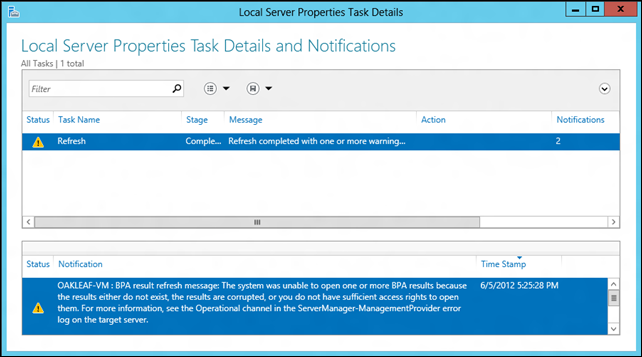
Following is the initial error message below the above notification:

Note: BPA is the abbreviation for Windows Server 2012’s Best Practices Analyzer.
12B. Scroll down to the Best Practices Analyzer, and open the Tasks menu:
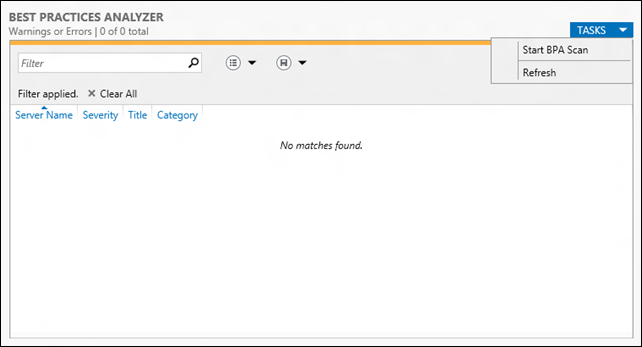
12B. Click the Start BPA Scan command and wait a minute or two for the scan to complete:

12C. According to the following message from Microsoft in a Server Manager reporting Manageability problem after fresh install WS2012 RC thread in the Windows Server 2012 Release Candidate (RC) General forum, you can safely disregard this benign error, which appears to be a bug:

13. Return to Server Manager for the VM and scroll to the Roles and Features pane at the end of the canvas:

14. Scroll to display the remaining default Features and Role(s).
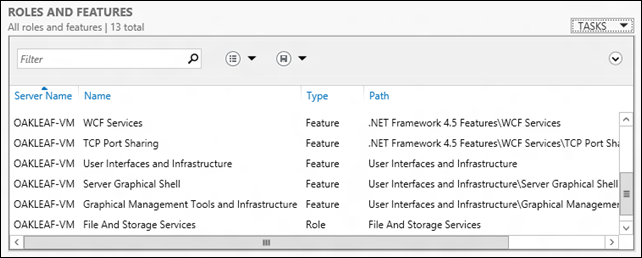
15. Review the features installed by default and add or remove features and roles as desired using the Tasks menu.
Technorati Tags:
Windows Azure Virtual Machines,
Windows Azure VMs,
Azure VMs,
Windows Azure Web Sites,
Windows Azure Management Platform,
Windows Azure,
MEET Windows Azure,
Windows Azure Spring Wave,
Windows Azure SDK and Tools 1.7,
Codename "Antares",
DevOpsDays,
Cloud Computing


 Atom 1.0 site feed


