Contents:
Update 1/14/2013: Added link to Ed Bott’s An inside look at Internet Explorer 10's mysterious Flash whitelist to the Adobe Flash Player Whitelist Tool for the Surface RT’s Metro Modern Browser section.
Update 1/13/2013: Added the Adobe Flash Player Whitelist Tool for the Surface RT’s Metro Modern Browser and Video Decoding and Format Capabilities of the UG007 Android 4.1 MiniPC Device sections.
Update 1/6/2013: Added a Transcoding Windows Media Center *.wtv files to MPEG-4 with Handbrake section. (Updated 1/7/2012.)
Update 1/3/2013: Added a Playing MPEG-4 H.264 Videos on a Google Nexus 7 Tablet (and other Android devices) section covering the Dice Video Player and Nexus Media Importer apps for Android.
Update 1/2/2013: Added a new Background section, as well as 1366 x 768 captures of original MPEG-2 broadcast and MPEG-4 HQ-WS transcoded versions of a Masterpiece Mystery “Poirot” episode to the Widescreen Video and Audio Quality Observations section.
Background: In the late 1990s, I became interested in digital videography and purchased for about $2,500 a Sony DCR-VX1000 Mini-DV camcorder, which was the first video device to offer a FireWire (later IEEE-1394) digital output:
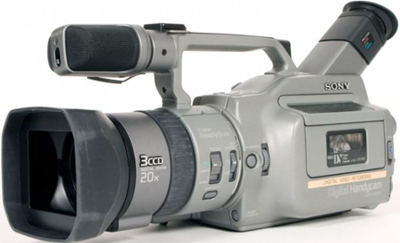
 I was a consultant to Adaptec Corp. for the AHA-8940, the first commercial consumer-oriented FireWire adapter for Wintel PCs, and was a contributor to Microsoft’s PC98 System Design Guide for DV-to-disk recording and editing under Windows 98. I also was a beta tester for early versions of Adobe Premiere video editing software for Windows.
I published the following two technical papers about the IEEE-1394 bus and DV recording/playback format, now archived on the OakLeaf Systems blog:
I also contributed numerous articles to DV Central’s Area 1394: Roger Jennings Reporting site, also archived by OakLeaf.
Unlike Windows 8’s Media Player, Microsoft Surface RT tablet computers don’t support HDTV’s (a.k.a. Advanced TV or ATV) MPEG-2 format. Instead, following are Surface RT’s supported video formats and codecs, according to the Brorsoft Web site:

Brorsoft mentions PressPlay Video by Apptivate.ms from the Windows Store, but this app only adds experimental support for Matroska (MKV) and Flash (FLV) video file formats to those above.
Brorsoft resells a commercial video format conversion app (VideoConverter) for US$35.00, but there are numerous free video format conversion utilities for Windows, most of which are GUIs for the ffMPEG free command-line software. Here’s a screen capture of WinFF prepared to convert four sample MPEG-2 files, two of which are in 480P standard-definition (SD, 4:3 aspect ratio) and the other 1080P high-definition (HD, widescreen) formats:

WinFF offers the following preselected MPEG-4 conversion formats (Presets):

Here’s a screen capture of ffMPEG’s command window when starting a conversion of a MPEG-2 SD file to MPEG-4 Fullscreen:
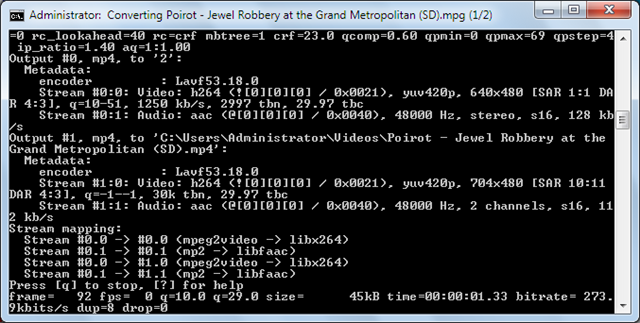
The transcoding for MP4 Fullscreen is about 27 frames/sec (fps) on a moderate performance PC running Windows 7 Ultimate Edition, so it takes 29.97/27 = 1.15 times the playing time of the episode to perform the conversion.
For more information about ffMPEG and its codecs, see Wikipedia’s ffMPEG topic.
VideoLAN offers a free and open-source media player named VLC, which currently is available for Windows 8 on Intel and Windows 7, and is under development for the Windows 8 “modern” (formerly Metro) UI on ARM (Surface RT) with a Kickstarter-funded project that is 100+ percent funded as of 12/23/2012.
More details are available for the forthcoming VLC for the new Windows 8 User Experience ("Metro") version, including UI mockups. The target release date for the Windows Store doesn’t appear to be available from published information.
VLC for Windows 8 on Intel and Windows 7 plays the following formats:

It’s assumed that VLC will support the same formats on Surface RT tablets.
Note: A VLC beta version is available for Android, but isn’t compatible with Nexus 7 tablets.
Source of the MPEG-2 Test Files
The MPEG-2 source files for the following transcoded examples were recorded in MPEG-2 Transport Stream (*.ts) format from off-the-air broadcasts by KQED Public Television, the PBS station for the San Francisco Bay Area, with a Pinnacle PCTV HD80e USB HD Stick for Windows.
 The HD Stick is a USB 2.0 device with an adapter cable to convert the non-standard antenna input to a standard type F female coax connector. I bought several at a closeout price of US$30.00. The included TVCenter software provides a TVCenter Gallery app for transcoding from MPEG-2 Transport Stream to the following formats:
- DVD (fails to transcode)
- MPEG-2 Program Stream
- MKV H264 Native
- DivX, three formats
- Sony PSP MPEG-4
- Apple iPod MPEG-4 Low
- Apple iPod MPEG-4 High
Digimetrics, a publisher of file-based test and measurement programs, sponsors distribution of MediaInfo, a free and open-source application that displays the most relevant technical and tag data for video and audio files. Following is MediaInfo’s basic properties Window for the SD “Dead Man’s Mirror” episode:

Note: The Advanced Television Standards Committee (ATSC) 704*480 format uses non-square pixels to achieve a 4:3 aspect ratio. ATSC allows the following video resolutions, aspect ratios, and frame/field rates:
- 1920 × 1080 pixel (16:9, square pixels), at 30p, 29.97p, 24p, 23.976p, 60i, 59.94i.
- 1280 × 720 pixel (16:9, square pixels), at 60p, 59.94p, 30p, 29.97p, 24p, or 23.976p
- 704 × 480 pixel (4:3 or 16:9, non-square pixels), at 60p, 59.94p, 30p, 29.97p, 24p, 23.976p, 60i, or 59.94i
- 640 × 480 pixel (4:3, square pixels), at 60p, 59.94p, 30p, 29.97p, 24p, 23.976p, 60i, or 59.94i
From Wikipedia’s MPEG-2 and ATSC Standards topics.
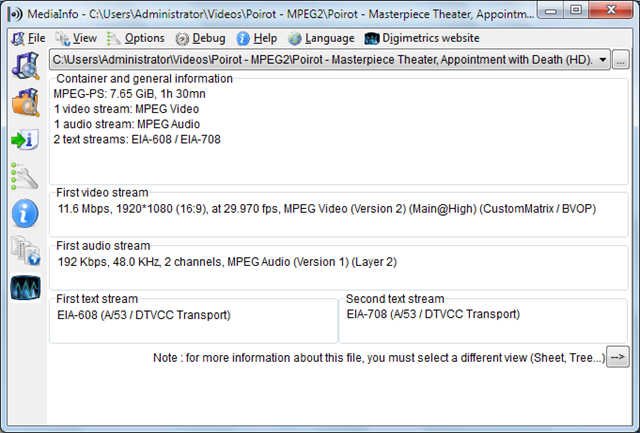
Here is the basic MediaInfo report for the two HD episodes:
Wikipedia describes the ATSC’s H.264/MPEG-4 format as follows:
H.264/MPEG-4 Part 10 or AVC (Advanced Video Coding) is a standard for video compression, and is currently one of the most commonly used formats for the recording, compression, and distribution of high definition video. The final drafting work on the first version of the standard was completed in May 2003.
H.264/MPEG-4 AVC is a block-oriented motion-compensation-based codec standard developed by the ITU-T Video Coding Experts Group (VCEG) together with the International Organization for Standardization (ISO)/International Electrotechnical Commission (IEC) joint working group, the Moving Picture Experts Group (MPEG). The product of this partnership effort is known as the Joint Video Team (JVT). The ITU-T H.264 standard and the ISO/IEC MPEG-4 AVC standard (formally, ISO/IEC 14496-10 – MPEG-4 Part 10, Advanced Video Coding) are jointly maintained so that they have identical technical content.
H.264 is perhaps best known as being one of the codec standards for Blu-ray Discs; all Blu-ray Disc players must be able to decode H.264. It is also widely used by streaming internet sources, such as videos from Vimeo, YouTube, and the iTunes Store, web software such as the Adobe Flash Player and Microsoft Silverlight, and also various HDTV broadcasts over terrestrial (ATSC, ISDB-T, DVB-T or DVB-T2), cable (DVB-C) and satellite (DVB-S and DVB-S2).
MPEG-4’s primary advantage is greater compression of the video source signal than MPEG-2, which reduces transmission bandwidth requirements. Other advantageous features are described here.
The following table compares the size of the original MPEG-2 and converted MPEG-4 files using the High Quality preset:
| PBS Video Episode | Length | Format | MPEG-2 Size | MPEG-4 HQ | Compression |
| Dead Man’s Mirror | 01:01:01 | 640 x 480 | 1,651,598 KB | 124,332 KB | 13.3:1 |
| Jewel Robbery* | 01:00:02 | 640 x 480 | 1,742,180 KB | 133,045 KB | 13.1:1 |
| Appointment with Death | 01:30:56 | 1920 x 1080 | 8,017,824 KB | 565,326 KB | 14.2:1 |
| Mrs. McGinty Is Dead | 01:31:00 | 1920 x 1080 | 6,874,432 KB | 417,969 KB | 16.4:1 |
* The full title is “Jewel Robbery at the Grand Metropolitan. 1020P.” 1080P files are from Masterpiece Mystery’s “Poirot X” and “Six by Agatha” series.
Note: Conversion with the Super High Quality preset produces exactly the same MPEG-4 file sizes, which indicates no quality benefit.
Pixelation and motion-induced video noise with SD MPEG-2 input is more than most viewers would put up with on a 35-inch or larger HD TV. HD input improves picture quality and reduces noise, but doesn’t come close to broadcast standards.
Most viewers would find SD-HQ encoding delivers unacceptable video quality on a large-screen HD TV.
Audio quality doesn’t doesn’t suffer perceptible effects from transcoding.
Converting to MPEG-4 Fullscreen and Widescreen formats increases the resulting file size (compared to MPEG-4 HQ H.264 format).
Following are the details for the two SD files converted to MPEG-4 Fullscreen:
| PBS Video Episode | Length | Format | MPEG-2 Size | MPEG-4 FS | Compression |
| Dead Man’s Mirror | 01:01:01 | 640 x 480 | 1,651,598 KB | 476,669 KB | 3.46:1 |
| Jewel Robbery | 01:00:02 | 640 x 480 | 1,742,180 KB | 477,149 KB | 3.65:1 |
The transcoding rate is about 11 fps = 29.97/11 = 2.72 times the playing time.

Following are the details for the two high-definition files converted to MPEG-4 Widescreen:
| PBS Video Episode | Format | MPEG-2 Size | MPEG-4 WS | Compression |
| Appointment with Death | 1,920 x 1,010 | 8,017,824 KB | 2,835,570 KB | 3.14:1 |
| Mrs. McGinty Is Dead | 1,920 x 1,010 | 6,874,432 KB | 2,093,443 KB | 3.28:1 |
Here’s ffMPEG’s command window report upon completion of transcoding “Appointment with Death”:
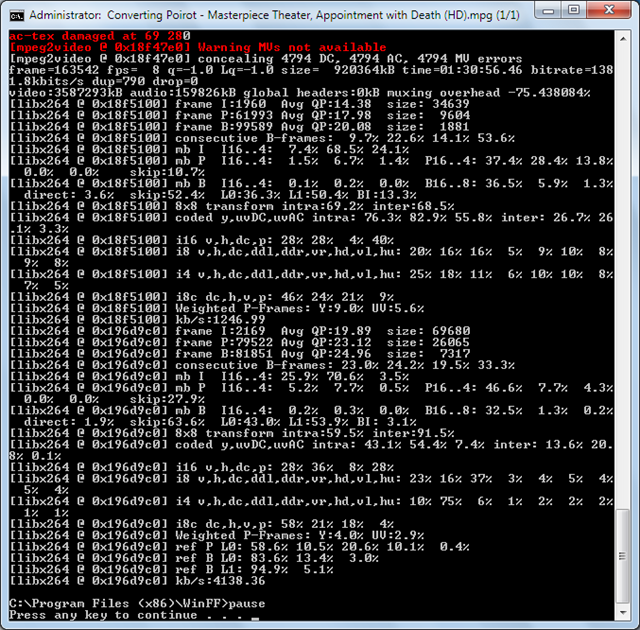
Warnings ac-tex damaged at ## ## and Warning MVs not available are common. The effects usually are concealed by ffMPEG.
The transcoding rate is about 7 fps = 29.97/7 = 4.28 times the playing time.

Video and Audio Quality Observations
Motion-related pixelation, noise and other video artifacts, such as staircasing, are greatly reduced with HD-WS transcoding compared with SD-HQ (see image below) and to a lesser degree with HD-FS transcoding.

Overall, images are softer than with the original MPEG-2 source, giving what some would call a “film effect.” Most viewers would find HD-WS encoding to deliver acceptable video quality on a large-screen HD TV. Following is a 1366 x 768 (16:9) Surface RT screen capture from the introduction to the HD-WS version of Masterpiece Mystery’s “Poirot: Appointment with Death” episode, which demonstrates the “film effect”:

Here’s a nearby frame captured in 1,366 x 768 format on a laptop PC running Windows 7 Pro from the original 1920 x 1080 MPEG-2 1080P off-air from KQED-HD San Francisco:

Audio quality doesn’t doesn’t suffer perceptible effects from transcoding.
Windows Media Center records off-air video to files with a *.wtv extension. These files include series name (such as Check, Please! Bay Area), episode name (such as Bellanico, Davy Jones Deli, and Gamine), TV channel number and date/time recorded as metadata. Files are autonamed with SeriesName_Station_Year_Month_Day_Hour_Minute_Second, as in Check, Please! Bay Area_KQEDDT2_2013_01_02_00_30_00 for a program recorded from KQED Plus on 1/2/2013.
Handbrake, an open-source, GPL-licensed, multiplatform, multithreaded video transcoder, available for MacOS X, Linux and Windows, is capable of transcoding these files to MP4 H.264 Normal (FS) or High Profile (WS) format:

To reduce file size, Media Center reduces the image size to 704 x 480 pixels, as shown above, for an MPEG-2 1080P transmission stream (*.ts file). Unlike TS, MPEG2, and MPEG4 files, Windows Explorer doesn’t display *.wtv files’ horizontal and vertical image size in pixels.

Handbrake reports that it further reduces the display size to 629 x 352 pixels. Here’s what the help file says about the Picture page’s controls:
Picture Settings
The Picture Settings Inspector lets change how your video will look. It has two tabs, Size and Filters, as well as a button to bring up the Preview Window.
Size
The size tab deals with the dimensions of the video, as well as the closely related matters of cropping and anamorphic encoding.
Width and Height
The width and height boxes allow you to control the pixel resolution of the encoded video. The steppers increment up and down by increments of 16.
Keep aspect ratio
When Keep Aspect Ratio is checked, HandBrake will link the height and width so that the picture is never distorted from its original aspect ratio.
Cropping
Sometimes, movies have black lines on the sides. To get rid of the them, you crop the picture. HandBrake does this automatically. It chooses how to crop pretty well, but sometimes it doesn't catch everything. If this is the case, click the Custom cropping radio button. This will enable the 4 numerical fields below arranged in a T-shape. Each field controls the cropping for the corresponding side of the picture. The steppers increment by 2, because cropping works best with even numbers.
Anamorphic (PAR)
When this is enabled, HandBrake will encode anamorphically. giving you a bigger picture.
There are three different ways of doing anamorphic in HandBrake: strictly, loosely, and custom. In strict mode, the full resolution of the DVD is preserved exactly. As a result, the picture dimensions will be locked and the "Keep aspect ratio" box will be dimmed out. Loose mode will tweak the dimensions slightly so they divide evenly by 16, and allows scaling the width of the stored video. Custom mode is just that -- all settings are configurable by the user. When it is enabled, extra controls appear in the inspector.
Here’s MediaInfo’s report of a typical transcoded file:

Windows Explorer displays the frame size as 704 x 358 pixels, as reported in Handbrake’s Picture Size text boxes. This frame size with High Profile transcoding provides adequate video quality for 7- and 10-inch tablets, but not for large monitors or HDTV sets. Transcoding time is about 15 minutes for a 30-minute *.wtv segment.
 Microsoft misguidedly determined to protect Surface RT users from watching Adobe Flash videos not approved by the Redmond Vatican by creating a whitelist of apparently TV-G-rated sites for the
 Metro Modern brower.
 Ed Bott (@edbott) asked “In Windows 8 and especially on Windows RT, your ability to run Flash programs hosted on the web depends on whether a site is included on Microsoft's Compatibility View list. So what does it take to get added to that list? And what can you do if a favorite Flash-based site won't work?” in a deck for his An inside look at Internet Explorer 10's mysterious Flash whitelist article of 1/14/2013.

Adobe's Flash has taken its share of abuse over the past few years, both for its security risks and for its occasional impact on performance and battery life.
For the late Steve Jobs, Flash represented an opportunity to break with a very messy past, as he articulated in his infamous April 2010 post, Thoughts on Flash. That blunt message listed the six reasons why, in Jobs' words, "we do not allow Flash on iPhones, iPods and iPads."
Of course, Apple still allows the Flash plugin on its Macs running OS X, which means Apple customers get to choose between all or nothing when it comes to Flash support. The inability to play Flash content is one of the consistent complaints I still hear from iPad owners, nearly three years after the platform's release.
For Internet Explorer 10 on Windows 8 and Windows RT, Microsoft has tried to walk a delicate balancing act with Flash. The underlying theory is that Flash itself isn't evil. Instead, its bad reputation can be traced to the impact of poorly written Flash programs, which drain batteries and hog CPU resources, or malicious Flash content that exploits weaknesses in the Flash runtime to spread malware.
There are, in fact, many well-written Flash-based programs that behave like model citizens. So why should they be punished for the sins of a few bad actors?
That's the philosophy behind the Internet Explorer 10 Flash compatibility whitelist. Alas, it's not well documented, which is why I decided to write this post. …
Read more.
 Although you can manually add domains to the whitelist XML file at C:\Users\[USER_NAME]\AppData\Local\Microsoft\Internet Explorer\IECompatData\iecompatdata.xml with a text editor, the Windows RT Whitelist Flash Tool created by Lorenzo Nugara (@TheNamesEnz; a.k.a. DroidKid at Neowin) simplifies the process. You can download the Windows RT Whitelist Flash Tool files from my Skydrive account.

From Enz’ Readme.txt file:
- Current Version: 1.0 01/08/2013
- Description: Tool that allows you to add any website to Microsoft’s Internet Explorer compatibility list, return to the default list, and import a custom list.
- Option 1:
- Will copy over a custom compatibility list that I have attached to the script, this list contains a ton of different websites.
- It will then disable the option "download updated compatibility list from Microsoft" to prevent the list from being overwritten.
- It will overwrite your current compatibility list!
- Once the compatibility list has been copied over the script will then delete all of your browser cache, history, and cookies...
- Option 2:
- Will copy over the default compatibility list.
- It will then enable the option "download updated compatibility list from Microsoft" to allow the list to be updated automatically by Microsoft.
- It will overwrite your current compatibility list!
- Once the compatibility list has been copied over the script will then delete all of your browser cache, history, and cookies...
- Option 3:
- Will prompt you to enter a website that you would like added to your compatibility list. Note: you MUST type the website without any prefixes such as "www" or "Http" for example if you wanted to add the website (www.miniclip.com) you would type miniclip.com
- The script will then disable the option "download updated compatibility list from Microsoft" to prevent the list from being overwritten.
- Once the web site has been added to you compatibility list the script will then delete all of your browser cache, history, and cookies...
- Option 4: Will simply exit the script within 4 seconds or if you push any key
As Ed Bott observed:
I'm aware of at least one third-party solution that works by tweaking the built-in CV list with your own additions. The trouble with that option is that it requires shutting down automatic updates to the CV list. And with Microsoft adding 30 domains per day to that list, on average, you're likely to miss out on a useful addition sooner rather than later.
 The Dice Video Player from INISOFT_DEV is a free hardware-accelerated video player with playback speed control for Android devices, including the Google Nexus 7. The Dice player claims to offer the following features:
- Network Support: Windows Share, FTP and HTTP
- Multiple audio tracks
- Multiple subtitle tracks; external subtitles are also supported
- Hardware acceleration
- Formats: AVI, MOV, MKV, FLV, AVI, 3GP, 3G2, ASF, WMV, MP4, M4V, TS, MTP, M2TS ]
- Video Codecs
- Hardware: MPEG-4, H.264, H.263
- Software: MPEG-4, H.264, RMVB, XVID, MS MPEG-4, VP6, H.263, MPEG-1, MPEG-2
- Audio Codecs: DTS, AC3, AAC, Vorbis, FLAC, MP3, MP2, WMA
- Playback speed control up to x2.0 with hardware acceleration; audio pitch correction support
- Subtitle formats: SSA,SMI,SRT, VoBSub (beta); MKV/MP4 with embedded subtitles (supports Unicode and multibyte charsets)
- Transports: HTTP, RTP/RTSP, HTTP Live Streaming, FTP, Windows Share (SMB/SAMBA via NFS/Network File System)
Here’s a screen capture from my Nexus 7 of the Dice app playing the same file as above from a 16 GB USB flash drive:

You can download and install the Dice Video Player from Google Play.
 The US$2.99 Nexus Media Importer from Homesoft enables streaming *.mp4 and other video and audio files from a USB Flash drive plugged into a USB On-The-Go (OTG) compatible cable or hub connected to an OTG cable. For more information on these cables for Android devices, see OakLeaf’s Get the Right On-The-Go (OTG) Micro-USB Cable for Nexus 7 Tablets post (updated 1/4/2013.)
I’ve ordered a CozySwan UG007 Android 4.1 MiniPC device from Amazon (sold by VALI and fulfilled by Amazon) for US$69.50 (Prime 3-day freight included) based on James Threw’s The RK3066 Android 4.1 mini PC is the MK802's younger, smarter, cheaper brother, we go hands on Engaget review of 1/12/2013, which begins as follows:
 When the MK802 Android mini PC landed in our laps, it caused more than a ripple of interest. Since then, a swathe of "pendroids" have found their way to market, and the initial waves have died down. While we were at CES, however, we bumped into the man behind the MK802, and he happened to have a new, updated iteration of the Android mini PC. Best of all, he was kind enough to give us one to spend some time with. The specifications speak for themselves, and this time around we're looking at a dual-core 1.6GHz Cortex A9, 1GB of RAM, 4GB of built-in flash (and a microSD slot), WiFi in b/g/n flavors, DLNA support and Bluetooth, all running on Android 4.1 Jelly Bean. There's also a micro-USB, full-size USB, female HDMI port and 3.5mm audio out. …
According to Amazon, the specs for the CozySwan unit (edited for clarity) are as follows:
 Operating System: Google Android 4.1.1 Jelly Bean with Bluetooth
 - CPU: RK3066 1.6GHZ Dual ARM Cortex-A9 processor
- GPU: Mali 400MP4 quad-core; supports 1080P video (1920 by 1080 pixels)
- RAM: 1GB DDR3
- Internal Memory: 8 GB Nand Flash
- External Memory: Supports Micro-SD card, up to 32GB
- Networking: WiFi 802.11b/g/n with internal antenna
- Ports: 1 USB 2.0 host and 1 Micro USB host (see photo at right), 1 HDMI male, 1 Micro-SD card slot
- Power: 90-230V, 50/60Hz, 30 W input to wall wart; output: 5V/2A
- Video Decoding: MPEG 2 and 4.H.264; VC-1; Divx; Xvid; RM8/9/10; VP6
- Video Formats: MKV, TS, TP, M2TS, RM/RMVB, BD-ISO, AVI, MPG, VOB, DAT, ASF, TRP, FLV
- Audio Decoding: DTS, AC3, LPCM, FLAC, HE-AAC
- Images: JPEG, PNG, BMP, GIF
Note: There are many similar first-generation devices, such as the MK802, which use the RK3066 CPU, run Android 4.0 and don’t support v4.1 or Bluetooth. Make sure you purchase a second-generation device.
Using a TV set as a monitor reminds me of the early days of the Commodore 64 and the first Apple PCs. Of course today’s HDTVs deliver the resolution for text and graphics that was missing in NTSC/PAL receivers.
I’ll update this post with video decoding and format compatibility details after I receive and test it with our Samsung UN46D6050 Smart TV.
As expected, transcoded MPEG video quality improves with increasing data rate (i.e., file-size). Transcoding from MPEG-2 to MPEG-4 H.264 to remedy a missing feature in a specific device probably doesn’t warrant the considerable time and effort required.
Transcoding directly from MPEG-2 Transport Stream to MPEG-4 H.264 Fullscreen or Widescreen is the best approach, because more device types and operating systems support this format.
If you have a large library of MPEG-2 files (I have 1.5 TB at the time of writing) and want to view them on a Surface RT, waiting for VideoLAN’s VLC Media player might be a practical alternative to MPEG-4 transcoding.
Technorati Tags:
MPEG-2,
MPEG-4/H.264,
MPEG-4,
ATSC,
HDTV,
Video Transcoding,
Windows RT,
Microsoft Surface,
Surface RT,
ffMPEG,
WinFF,
MediaInfo,
Google Nexus 7,
Nexus 7 Y-cable,
Dice Video Player,
Nexus Media Player,
USB Streaming,
USB Sticks,
Flash Drives,
Windows Media Center,
Media Center,
WTV Format,
WTV,
Adobe Flash,
Surface RT Flash Player,
Flash


 Update 12/20/2012: Brooke Crothers asserted “Google is planning a Nexus 7 that could eventually go as low as $99, an Asia-based report claims” in a deck for his


 Atom 1.0 site feed


